
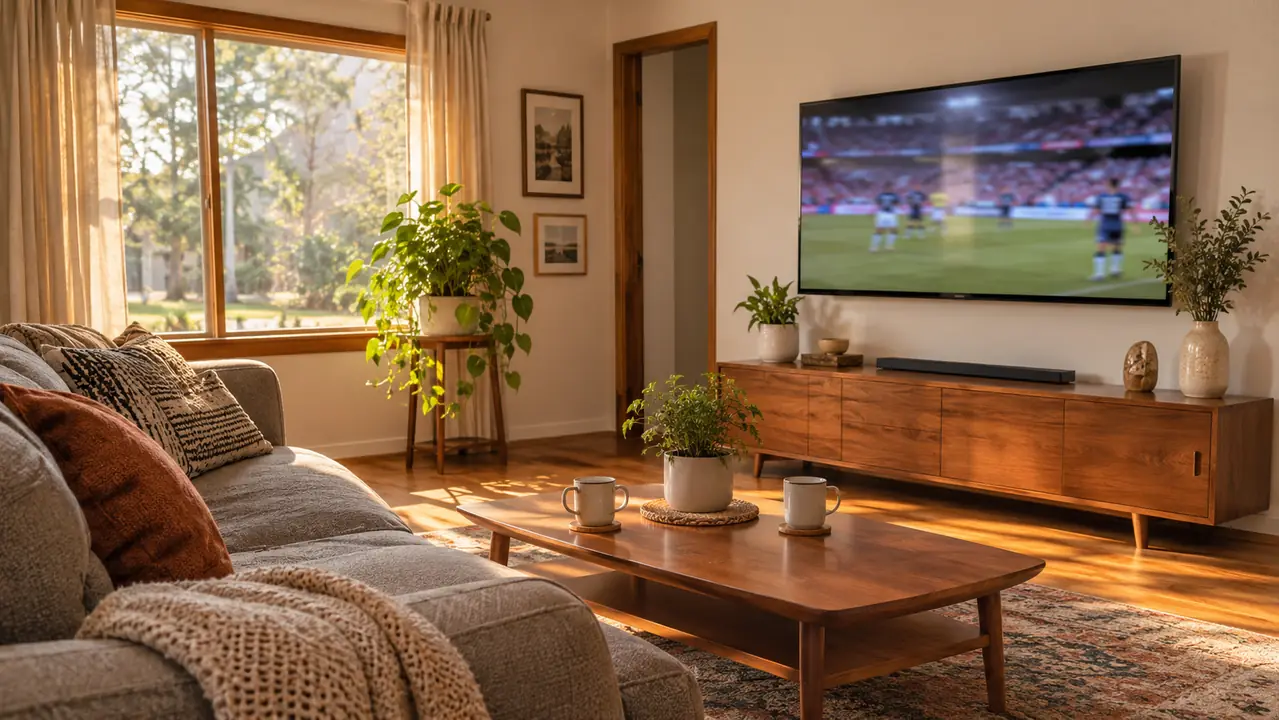
The antenna is the easy part. I know that sounds wrong if you are staring at a wall of them online, but after a year and a half of using one, that is the honest summary. Gloria and I cancelled cable in April 2025 after about twenty years of paying for it, and I bought an intelbras indoor antenna the next month. Getting it running took one afternoon. What took longer was learning the small habits that make an antenna pleasant instead of annoying: which input to switch to, where the thing actually wants to sit, and what to do when a station decides not to cooperate on a Sunday.
What we use it for is not complicated. Local morning news with coffee on weekdays. Evening news at 6. College football on Saturdays in the fall, NFL on Sundays, basketball through the winter, a baseball game now and then in summer. The antenna brings in the major local broadcast stations for all of that, and it does it without a login screen and without a buffering wheel. This is the order I would do it in if I were starting from scratch tomorrow.
Start with an antenna that plugs straight into the back of the TV
The intelbras indoor antenna connects to the television's antenna input, supports 4K and 1080p, and carries a 360 day limited warranty. Nothing to pair, nothing to sign into, nothing to keep charged.
Amazon Check Today's Price on Amazon →Step 1: Confirm your TV has a tuner and an antenna input
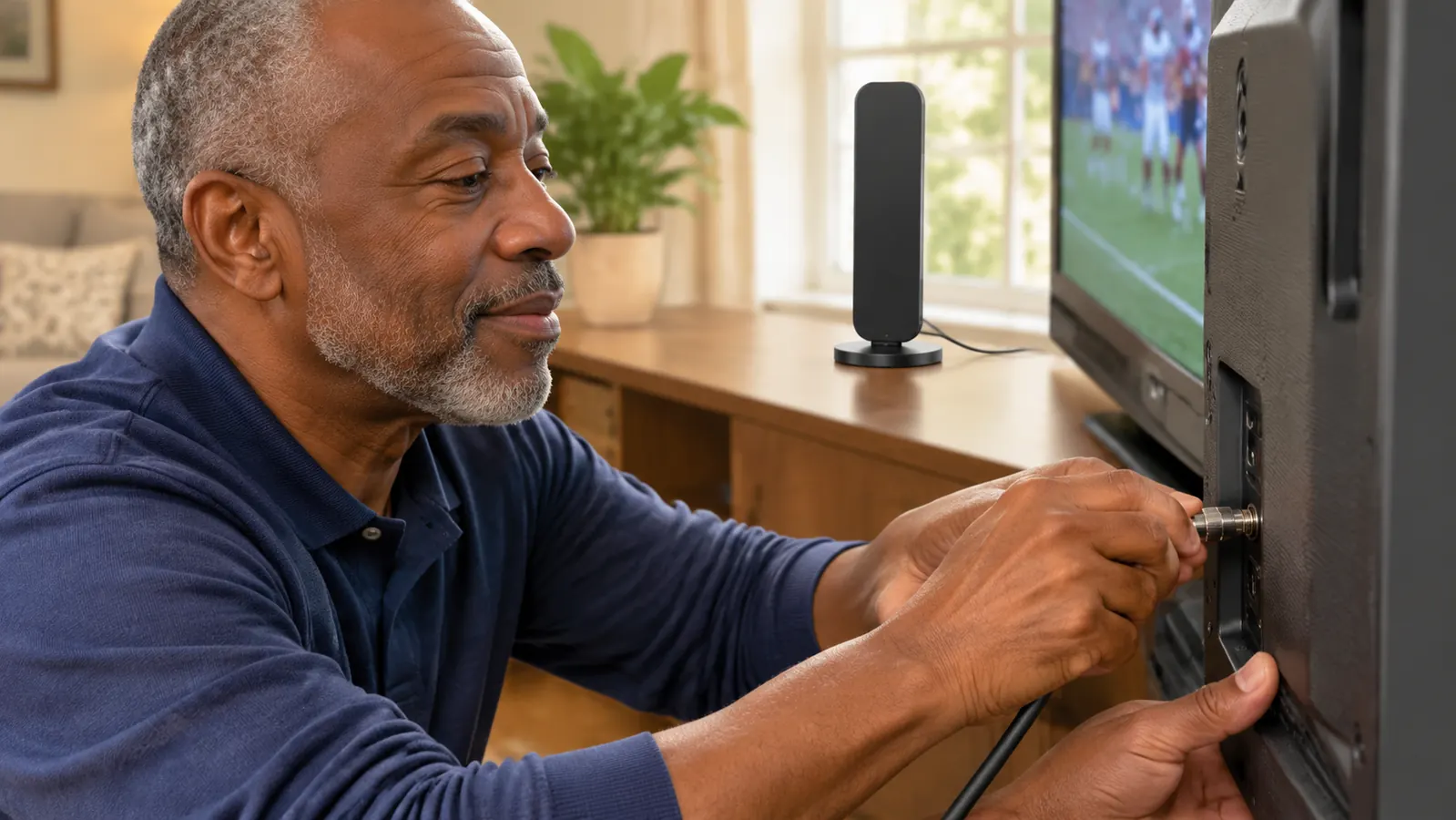
Almost every modern television has one, but check before you buy anything. Get behind the set with a flashlight and look for a round threaded connector labeled ANT IN, Antenna, or Cable. That is the jack you need. If the back of your television only has HDMI and USB ports, it has no tuner built in and an indoor antenna will have nothing to talk to. You would need a separate tuner box in that case, and it is better to find that out in your living room than after the box arrives.
Our TV has the jack. Our main television is a 55 inch TCL T7 I bought in mid November 2025, right before Thanksgiving football. The set it replaced, a 50 inch Samsung from 2016, went to our son Marcus and it had the jack too. Neither one needed anything extra to make the antenna work. The Roku Streaming Stick is a separate thing entirely, and this is where people get confused: a streaming stick does not tune broadcast channels. It gives you apps. The antenna gives you stations. You will probably want both, but they solve different problems.
One more check before you start moving furniture. Open your television's input list and see whether Antenna or TV shows up next to HDMI 1 and the rest. If it does, you are ready for Step 2. If it does not, dig out the manual, because a few budget sets ship with the tuner turned off in a menu somewhere. Marcus hit exactly that on a secondary set and it took him ten minutes to find.
Step 2: Give the antenna a real chance at a spot
An indoor antenna is not a decoration you drop wherever there happens to be an outlet. It wants height, it wants a wall that faces the outside world, and it does not like metal. Ours sits upright on the low media console under the television, on the window side of the room, and it has been in that spot since May 2025. The first place I tried was tucked behind the television itself, which is close to the worst possible spot, because a television is a large sheet of metal and electronics sitting directly between your antenna and the tower.
The unit is small, roughly 12 inches tall with a footprint of about 10 by 7.5 inches, so it does not crowd the console or fight the soundbar for room. The cable is 16.5 feet long, which is more reach than I needed and the reason I could leave the antenna near the window while the television stayed on the long wall. Do not coil the extra slack into a tight bundle behind the set if you can help it. Run it loose and out of the way. A tight coil is one of the few things that will quietly cost you a station, and it costs you nothing to avoid.
Height helps, so get the antenna as high as the room allows without parking it somewhere it will get knocked over. Ours is on a low console and that has been fine because the window is right there. If you land on a spot and one station is stubborn, move the antenna a foot and scan again. A foot matters more than you would expect. Moving it to the other end of the room often does not.
Step 3: Scan for channels, then clean up the list
The scan is the step people skip, and then they complain that the antenna does not work. Open the television menu, find Channels or Antenna, and run the auto scan. Give it a few minutes. It will find more than you want. Ours pulled in the local network affiliates, the independents, a weather subchannel, and a long row of shopping and music channels nobody in this house will ever watch.
After the scan, go back in and delete the junk, then look at the order of what is left. Renaming stations helps more than you would think, especially when two people in the house watch different things. On our set the evening news sits a couple of clicks from the top of the list, which means Gloria can find it while she is also stirring something on the stove. That sounds like a small thing. It is the difference between the antenna getting used and the antenna getting ignored.
Rescan whenever something changes. Stations launch, stations move, and the scan you ran in May is not necessarily the scan you want in November. I run one about once a season and after any big weather event, and it has brought back a station more than once. It takes a few minutes and it is the cheapest fix available to you.
Step 4: When a station breaks up, work the list in order
Freezing, pixel blocks, a sound drop in the middle of the evening news. It happens, and it is almost never the antenna going bad. The first move is a rescan, because the station may have shifted and your set is still looking in the old place. The second move is a physical nudge: slide the antenna a foot along the console or rotate it a few degrees, then scan again. The third is the cable itself. Push both ends in until they seat, at the antenna and at the television, because a loose connector behaves exactly like a weak signal.
Fourth, look for a splitter. If the antenna cable runs into a two way splitter so it can feed more than one set, that split is costing you signal, and it is the first thing I would pull out of the line. We have one television that matters in this house, so there is no splitter, and I would keep it that way. Fifth, check what the antenna is sitting next to. A metal shelf, a speaker, the router, an old brass lamp, any of those can cause trouble. Move the culprit rather than the antenna and see what happens.
And if a station is fine at 6 in the evening and rough at 2 in the afternoon, the problem may not be on your end at all. Some stations run at reduced power certain hours, and weather moves signals around. Knowing that saved me a pointless afternoon of dragging furniture across the floor. The intelbras unit has stayed in the same spot through all of it, and every problem I have chased down so far turned out to be a scan, a nudge or a cable.
Step 5: Make switching easy enough that nobody complains
This is the step that decides whether the antenna feels like a normal part of the house or like a science project. The antenna lives on one input. Streaming lives on another. If switching between them is a chore, the household will quietly stop using the antenna and drift back to whatever is one button away.
On the TCL the antenna input sits at the top of the source list, so the television remote gets there in two presses. The Roku stays on its own HDMI input with its own remote, and that is the one Gloria learned first, which is the main reason it stayed on the new set instead of going back on a shelf. Two remotes on the coffee table is the cost of the arrangement and it has been fine. The streaming stick handles the apps. The antenna handles the news and the games. Nothing overlaps and nobody has to think about it.
One thing that made a real difference: I pull the television out on the mount and angle it toward the kitchen side when Gloria is watching the news while she cooks, and push it flat to the wall for football. That has nothing to do with the antenna and everything to do with how often the antenna gets used. Make the whole setup easy and the free half of it stops feeling like a project you have to maintain.
Rescan first. Nudge it a foot second. Nearly every time, the station comes back and the antenna was never the problem.
What Else Helps
The antenna solved the channel problem. It did not solve everything, and I would rather say so up front. The big one was dialogue. Gloria could not hear the evening news through the thin television's built in speakers without cranking the volume, which made the whole house loud without making the words any clearer. A Polk Audio Signa S2 soundbar on a single HDMI cable to the ARC port fixed it. That is not an antenna issue, but it is the thing that made the antenna setup liveable here, so it belongs in the same conversation.
Beyond that: a mount that lets you angle the set, a little patience with the scan, and the streaming stick for everything broadcast never carried. The antenna is not a cable replacement in the sense of giving you every channel you had before. It gives you local stations, and local stations happen to carry the morning news, the evening news and most of the football, which was the entire point in the first place.
The local stations are already in the air. You just need the jack and a scan.
The intelbras indoor antenna plugs into the television's antenna input, handles 4K and 1080p, and comes with a 360 day limited warranty. Ours has been sitting on the console since May 2025 and it is still the first input we switch to at 6 o'clock.
Amazon Check Today's Price on Amazon →