
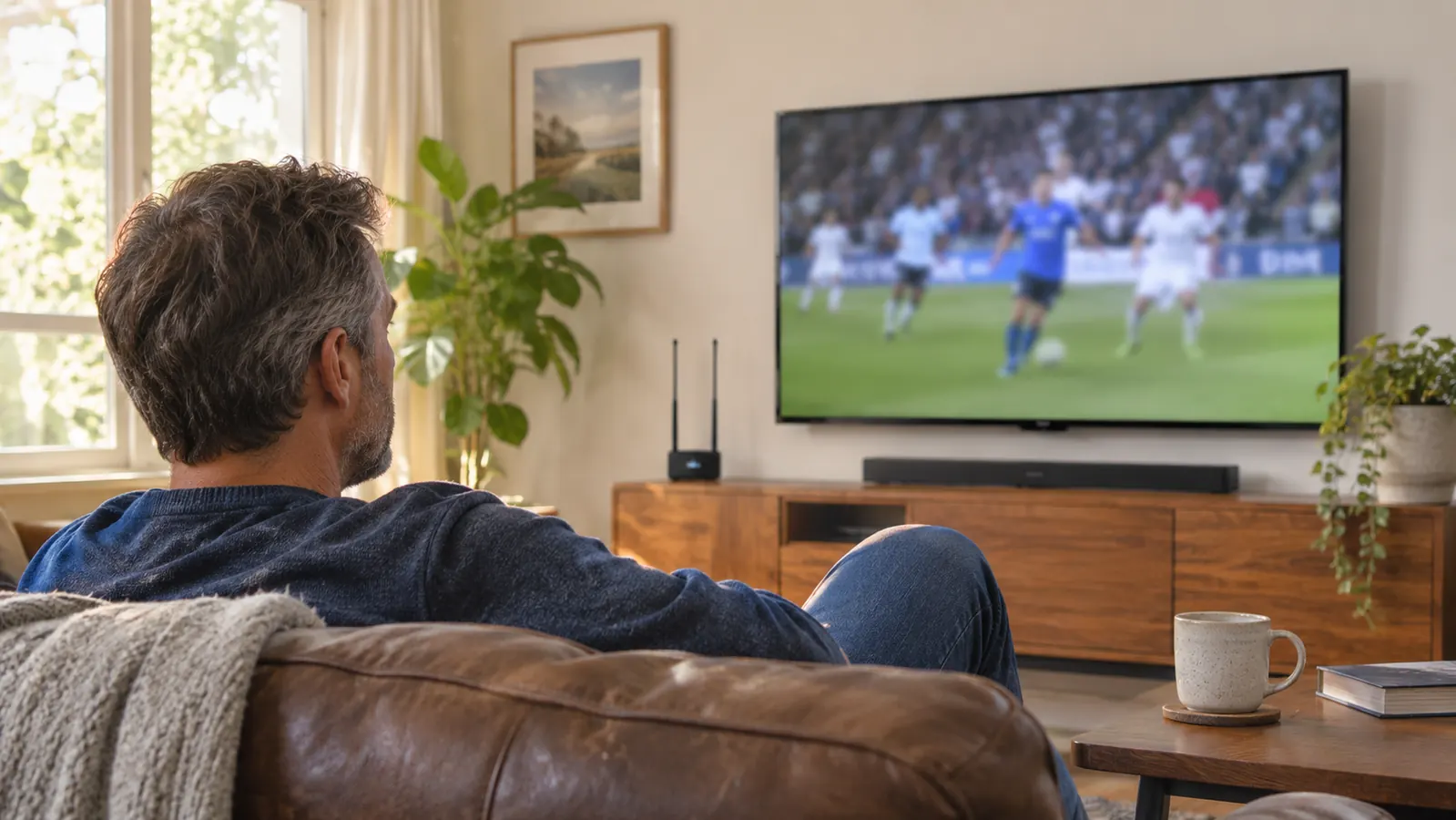
For about twenty years, finding a game meant one thing: punch in a number, or scroll the cable guide until your thumb hurt. When Gloria and I cancelled cable in April 2025, I figured the hard part was over. Then the first Saturday of that September rolled around, and I spent eleven minutes bouncing between three apps looking for a college football game that had already kicked off. Eleven minutes. I know because I looked up at the clock and saw the score was already 7-0.
The Roku Streaming Stick 4K was sitting on the shelf under the TV the whole time, doing nothing but running the apps I already had. It took me a few weekends to realize the problem was not the stick. The problem was that I was using it like a cable box. Once I set it up the way the Roku actually wants to be set up, finding live sports and local news became a thirty-second job instead of a scavenger hunt. Here is the routine, in the order I actually do it.
The stick that already does this is the one you may already own
I bought the Roku Streaming Stick 4K in March 2025 for a slow old TV and never looked back. It is what the house watches on every day, and Gloria learned its home screen before she learned anything else. If your search for a game keeps turning into a scroll, this is the cheapest fix in the room.
Amazon Check Today's Price on Amazon →Before You Start: What The Roku Streaming Stick 4K Actually Gives You
Worth being clear about, because I had the wrong idea for a month. The Roku Streaming Stick 4K is a streaming device, not a tuner. It does not pull signals out of the air. It runs apps, and it organizes them, and it has a voice remote that will go find things for you. That is the whole job, and it does the job well. The stick plugs straight into an HDMI port, connects over Wi-Fi, and outputs up to 4K UHD at 60fps with Dolby Vision and HDR10+ support.
That last part matters more for sports than I expected. A kickoff return is a hard thing to watch on a set that smears motion, and the picture processing on this stick keeps up. Colors on a team's uniforms look like the colors on the uniform, not like a washed-out photocopy. It is the same stick I moved over to our 55 inch TCL when that TV arrived in November 2025, and it has run every day since.
Here is what you are working with: a voice remote, Wi-Fi, an HDMI connector, and about 16 GB of storage so the apps you use stay installed and ready. Nothing exotic. The trick is knowing which of those things to lean on.
Step 1: Get Every Sports And News App Installed Once, Then Never Search For Them Again
The single biggest mistake I made was downloading apps on the fly. Saturday morning would come, I would remember that a certain game was on a certain service, and I would spend the first quarter downloading and signing in. By the time the app opened, the drive was over.
One Tuesday evening in September, I decided to add a service while the evening news was on. The download itself went fine. The sign-in did not. There was a password prompt I had not seen in years, a verification code sent to an email I had to go dig out of my phone, and a terms screen at the end of it. Twenty minutes for something I could have done in one sitting weeks earlier. That is the night I stopped installing apps on demand.
So one weekday evening, with nothing on, I sat down and installed everything at once. Pull up the Roku home screen, go to the app store, and add the services you actually watch. For me that meant the big network sports apps, the local news apps for the Raleigh stations, and the news apps for the national outfits. Netflix, Prime Video, Hulu and the rest were already there from before. It took maybe forty minutes, once.
The point of doing it in one sitting is that signing in is the slow part, and you want to do it while a talking head is on, not while a game clock is running. Get the passwords entered, get the accounts linked, and then let those apps just sit on the home screen forever.
Step 2: Use The Voice Remote Instead Of Browsing
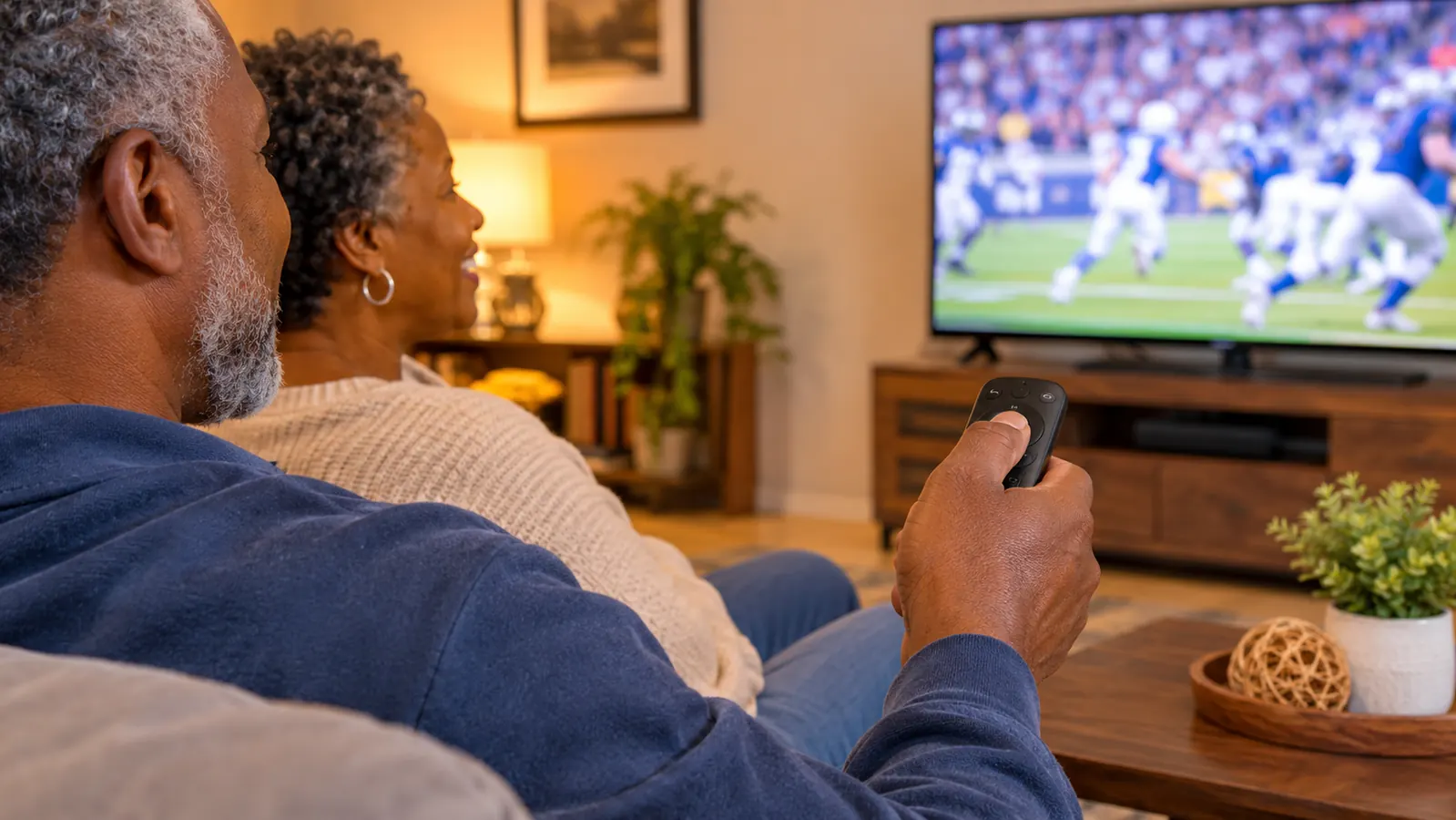
This is the step that changed my Saturdays. The Roku Streaming Stick 4K ships with a voice remote, and the voice button is not a gimmick. I hold it down and say the name of the team, or the name of the network, or the name of the event, and the stick goes and finds where it is playing.
A Sunday in October made the point for me. I was working my way down the home screen trying to remember which service carried the game I wanted, and Marcus walked in, picked up the remote, held the voice button, and said the name of the team out loud. It came back in about two seconds with where the game was playing. I had been doing it the hard way for a month for no reason at all.
I control almost everything in this house with that remote now. Gloria does too, mostly because saying the channel name out loud is easier than hunting through a grid. When our son Marcus comes over on Sundays, he does not have to ask me which app the game is on. He just says it.
A practical note: say the thing you actually want to watch, not the app you think it is on. "Sunday football" gets you further than "the sports app." When I want the evening news, I say the name of the station, not the network. The voice search understands names better than it understands categories.
Step 3: Build A Favorites Row So Kickoff Is One Click Away
Once the apps are installed, go through and mark the ones you use for live sports and news as favorites. That puts them at the top of the home screen instead of buried three rows down. It sounds like a small thing. On a Saturday morning with coffee getting cold, it is the difference between one press and five.
I keep a short list on purpose. Sports apps, the news apps, and the two or three streaming services we actually use. When I let the home screen fill up with everything, Gloria stopped being able to find the news on her own, and she stopped enjoying the thing I had been so proud of setting up. A short row is a shared row.
While you are in there, take a minute to clear out the apps nobody touches. The stick has 16 GB of storage, which is plenty, but a clean home screen is worth more than the free space.
Step 4: Turn On TV Control So One Remote Ends Up On The Coffee Table
Before I set this up, we had three remotes going at once: the TV remote, the soundbar remote, and the Roku remote. Gloria would hand me the wrong one and I would press buttons that did nothing. It got old fast.
The Roku Streaming Stick 4K includes TV control, and the setup walks you through it from the settings menu. You give it the brand of your television and it runs a short test to confirm power and volume work. During that test it sends one command at a time and waits for you to confirm each one landed. Do it slowly. The first time through I confirmed too quickly and ended up with a remote that would turn the volume down but not back up. Running the test again and waiting on each prompt sorted it out in about a minute.
Once that is done, the Roku remote turns the TV on and off and handles the volume, and the other remotes go in a drawer. I still use the TCL's own remote for one thing: switching the input over to the antenna when Gloria wants the local broadcast. That is it. Everything else happens on the one remote, and the coffee table stays readable.
Step 5: Pair The Broadcast Side With The Streaming Side, Then Watch The Picture, Not The Menu
Here is the honest part that took me longest to admit. Not every game and not every newscast is streaming. Some of it is still coming in over the air, and no streaming stick will change that.
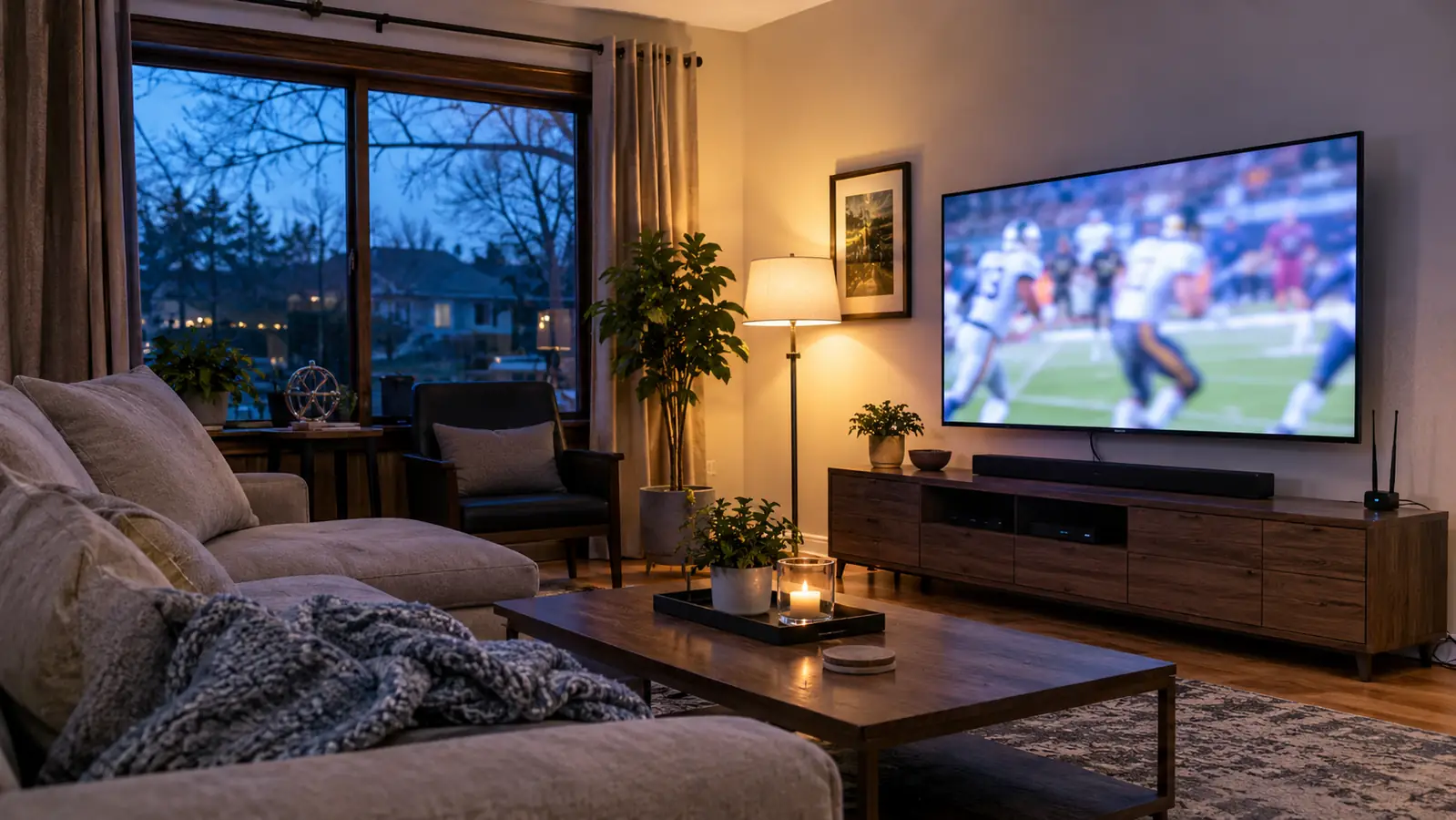
That is why the antenna matters in this house. Ours sits upright on the media console under the TV, on the window side, plugged into the antenna input. It brings in the major local broadcast stations, which is how we get the morning news with coffee and most of the Sunday football. The Roku handles everything that comes in over Wi-Fi. Between the two of them, we have not missed a thing since April 2025.
So the last step is not really a setting. It is a habit: before a game, decide whether you are going to the antenna input or to the Roku home screen, and go straight there. Once you make that decision up front, the searching stops. I pull the TV out on the mount and angle it toward the kitchen when Gloria is cooking and watching the news, and push it flat to the wall for games. Same idea. Set it up once, then stop fiddling.
The stick was not the problem. I was using it like a cable box, scrolling a guide that did not exist, when the fix was saying the team's name out loud and pressing one button.
What Else Helps
A soundbar did more for our news watching than any setting on the stick. The evening news at 6 was the thing that finally broke Gloria's patience, because the thin TV's built-in speakers pushed dialogue into a mush she could not follow without cranking the volume. The Polk Audio Signa S2 came in January 2026, connected with one HDMI cable to the TV's ARC port, and the difference on a news anchor's voice was immediate. If the person you watch with keeps asking you to repeat what was just said, that is a speaker problem, not a streaming problem.
The other thing that helped was moving the stick to the newer television instead of leaving it on the old one. When the 55 inch TCL arrived in November 2025, right before Thanksgiving football, I moved the Roku over and left the built-in apps alone. I gave the TCL's own system a couple of weeks. The Roku was faster to get to what I wanted, and more importantly, Gloria already knew where everything was. Familiar beats fancy when you are trying to find a game in a hurry.
One more habit worth building: look up the game the night before. Sixty seconds on a weeknight to confirm which service carries the Saturday game saves you the whole scramble on Saturday. I do it while the evening news is on, since I am already sitting there. I keep a short note in my phone, updated on Fridays: which game, which service, what time. It sounds fussy for a retired bus mechanic. It is the only reason I am not hunting through a menu at five minutes before kickoff.
And keep the software current. The stick updates itself, but a device that has been sitting idle for a couple of weeks sometimes wants a restart before an app will load cleanly. Unplug it, count to ten, plug it back in. That has fixed every hiccup I have had in twenty months, and I have had very few.
Twenty months in, it is still the thing everyone in this house reaches for first
The Roku Streaming Stick 4K went from a fix for a slow old TV to the way this household watches sports and news every day. Voice search, a favorites row, and one remote on the coffee table. That is the whole setup, and it has not needed replacing.
Amazon Check Today's Price on Amazon →